
Account Management Guide
Everything you need to manage your Telemetry Insights account — your subscription, linked devices, order history, profile settings, and support tickets, all from telemetryinsights.com/account.
Account Dashboard
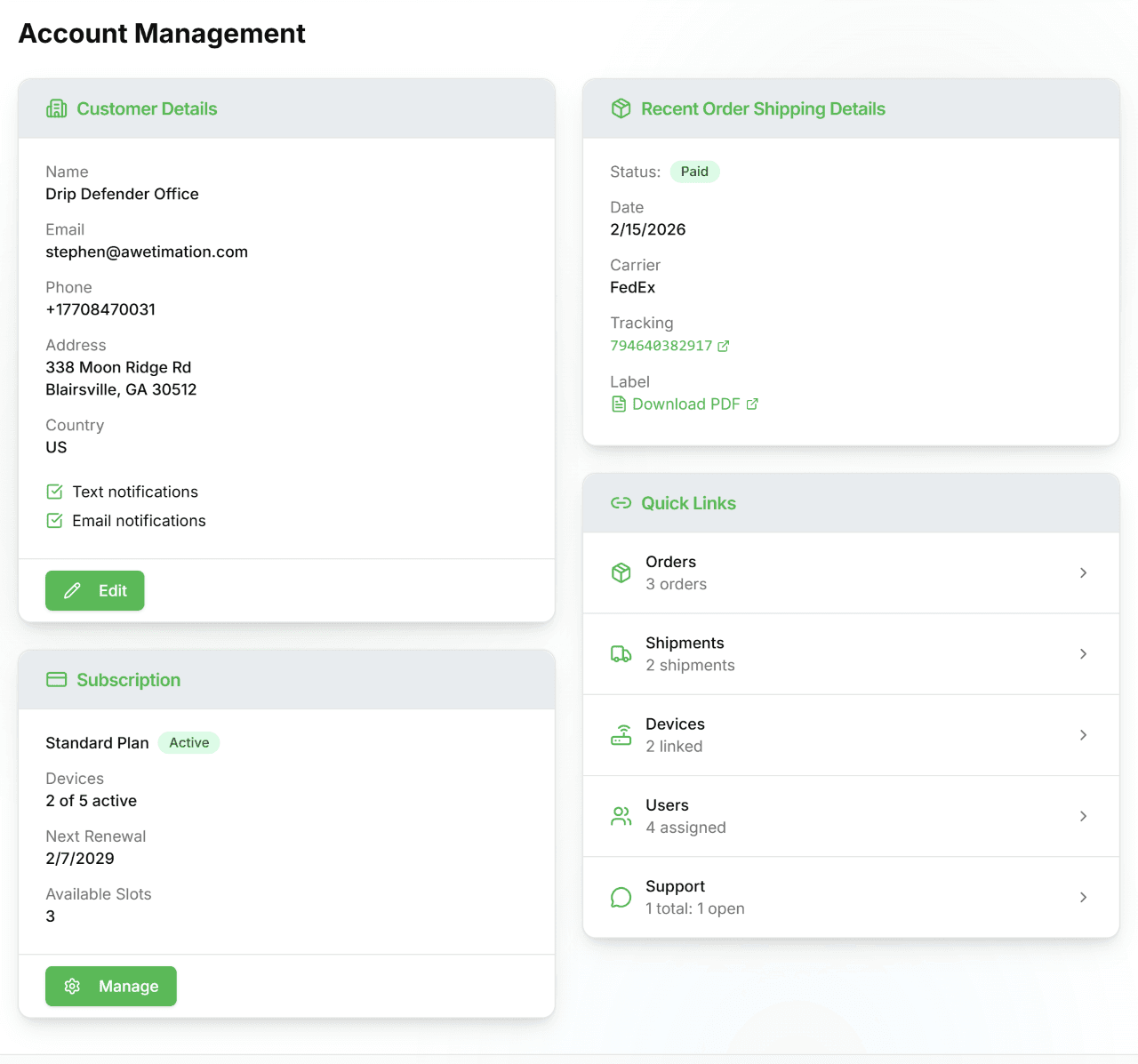
The dashboard is your account home page at telemetryinsights.com/account. It shows a summary of everything at a glance.
- Customer Details — your company name, email, phone, address, and notification preferences.
- Subscription — current plan tier, active device count, and renewal date.
- Recent Order — shipping status, carrier, and tracking number for your most recent purchase.
- Quick Links — jump directly to Orders, Shipments, Devices, Users, or Support.
Customer Details
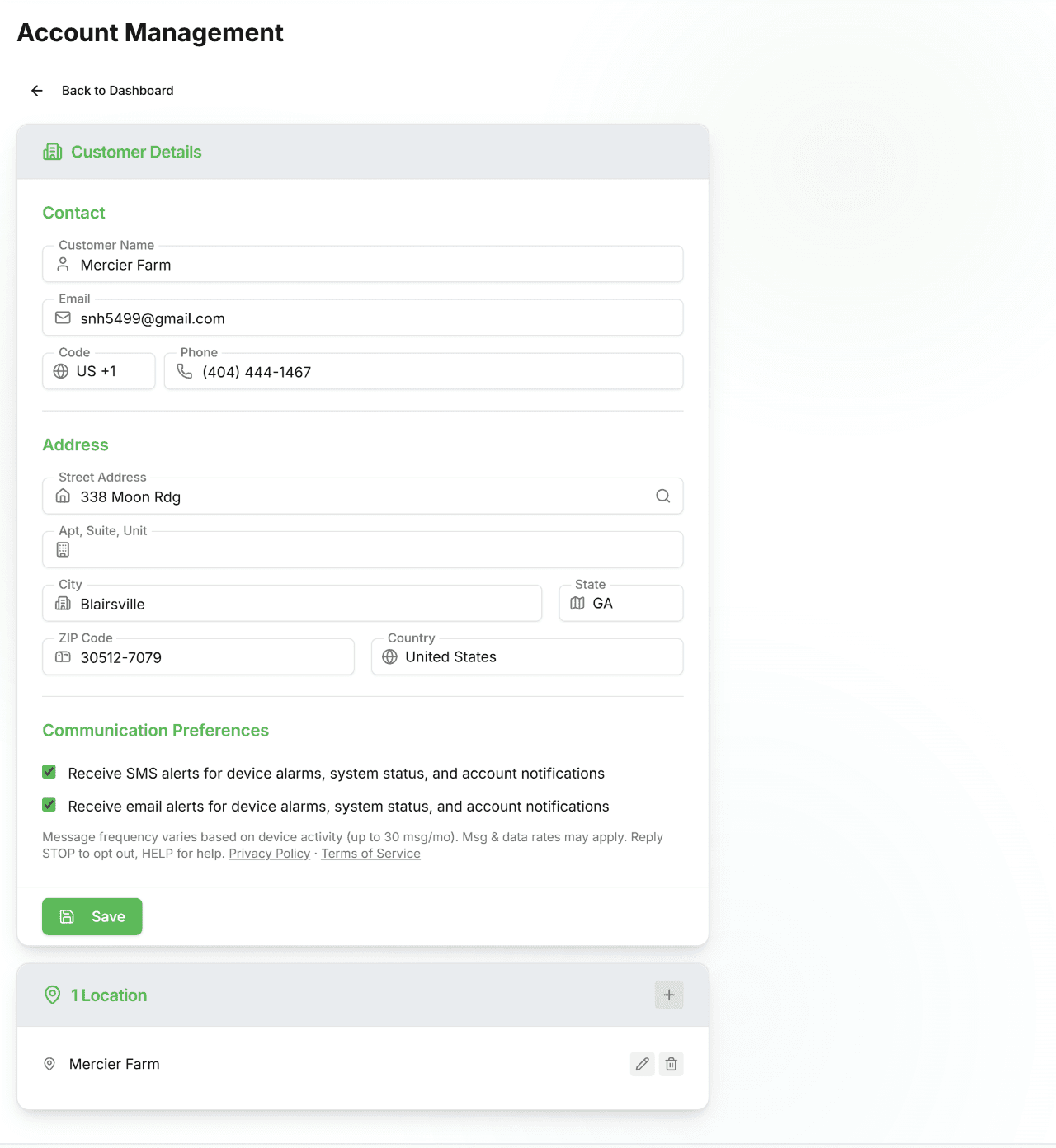
Update your business contact information and notification preferences. Go to Account → Edit (pencil icon on the Customer Details card) or navigate directly to /account/customer.
- Contact — company name, email address, and phone number.
- Address — street address with Google autocomplete, city, state, ZIP, and country.
- Communication Preferences — opt in or out of SMS alerts and email alerts for device alarms and account notifications.
Tap Save to apply changes.
Subscription
Manage your monitoring plan at /account/subscriptions.
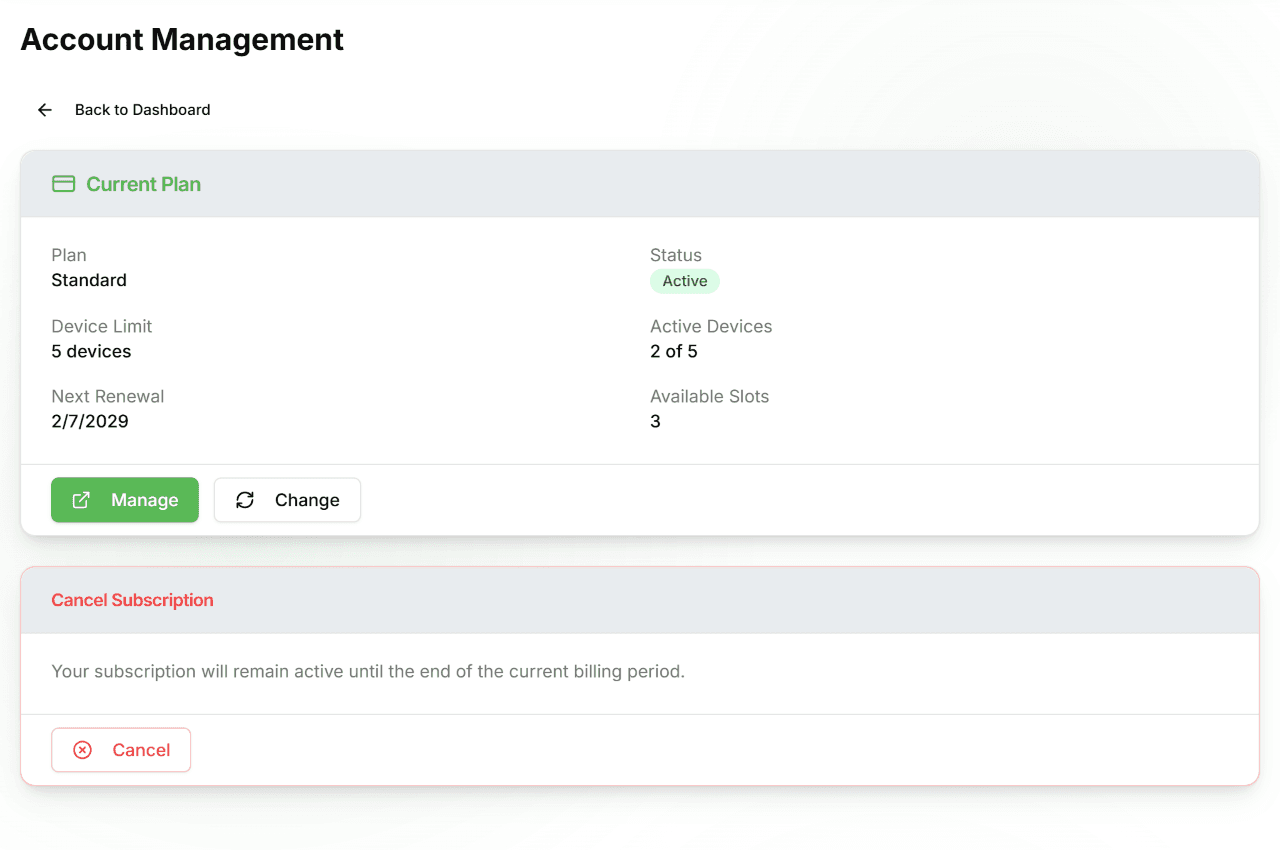
- Current Plan — shows your tier (Starter, Standard, Plus, Business), billing status, device limit, active device count, next renewal date, and available slots.
- Manage — opens the Stripe billing portal to update your payment method, download invoices, or view billing history.
- Change — takes you to the shop to upgrade, downgrade, or switch billing intervals (monthly → yearly → 3-year).
- Cancel Subscription — cancels at the end of the current billing period. Monitoring continues until that date.
Devices
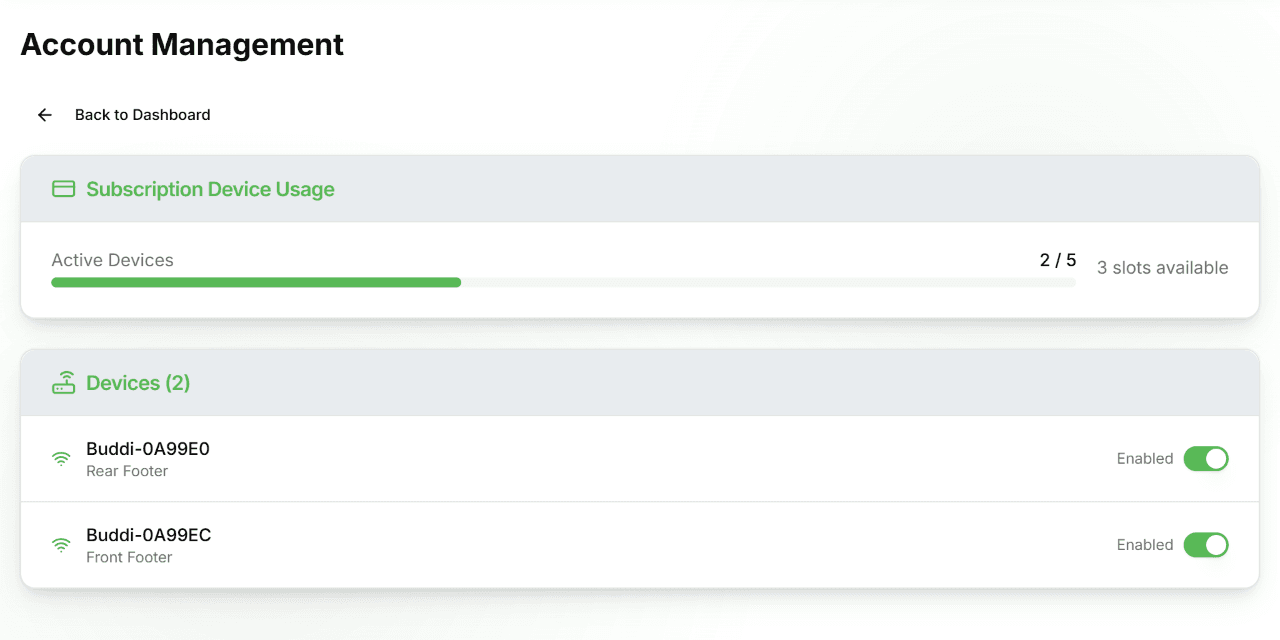
Control which devices consume a subscription slot at /account/devices.
- Subscription Device Usage — a progress bar shows how many of your plan's slots are in use (e.g. 3 of 5 active).
- Device list — every device linked to your account. A WiFi icon (green = online, grey = offline) shows real-time status.
- Enable / Disable toggle — turn each device on or off for monitoring. Disabled devices do not consume a subscription slot but also receive no alerts or live data.
Adding a device to your account is free and happens during device provisioning. A subscription slot must be enabled for each device before monitoring is active.
Orders
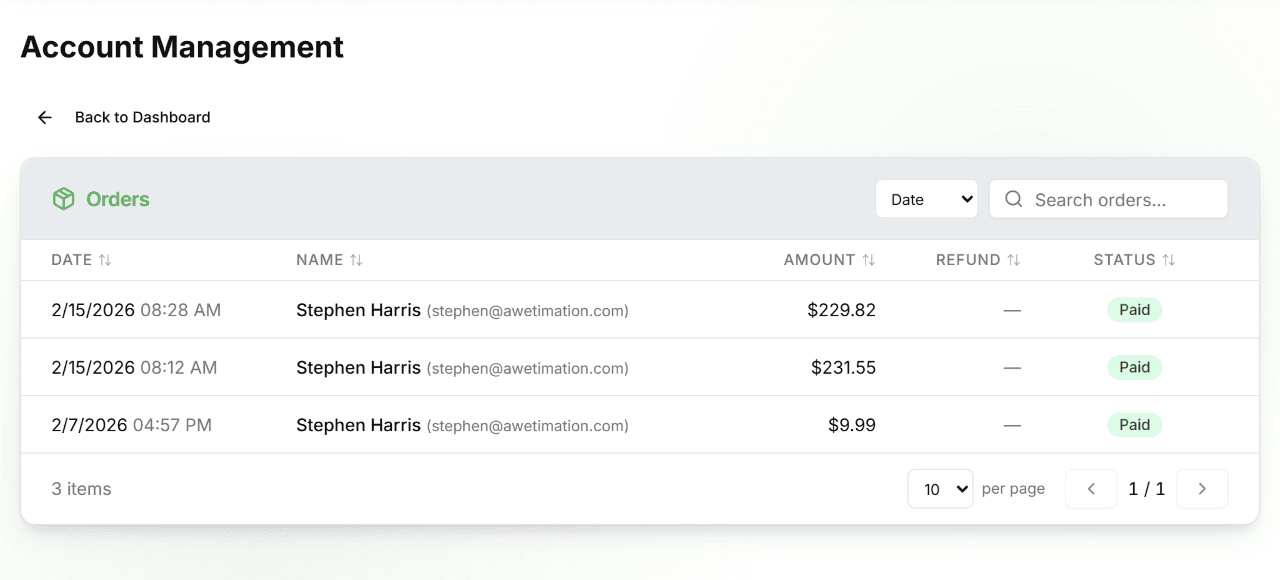
View your full order history at /account/orders.
- Each row shows the order date, customer name, amount, and payment status.
- Search — filter orders by name, email, amount, or status.
- Sort — click any column header to sort by date, amount, or status.
- Tap a row — opens the order detail page with full shipping information, tracking number, and a link to the carrier's tracking page.
Order Details
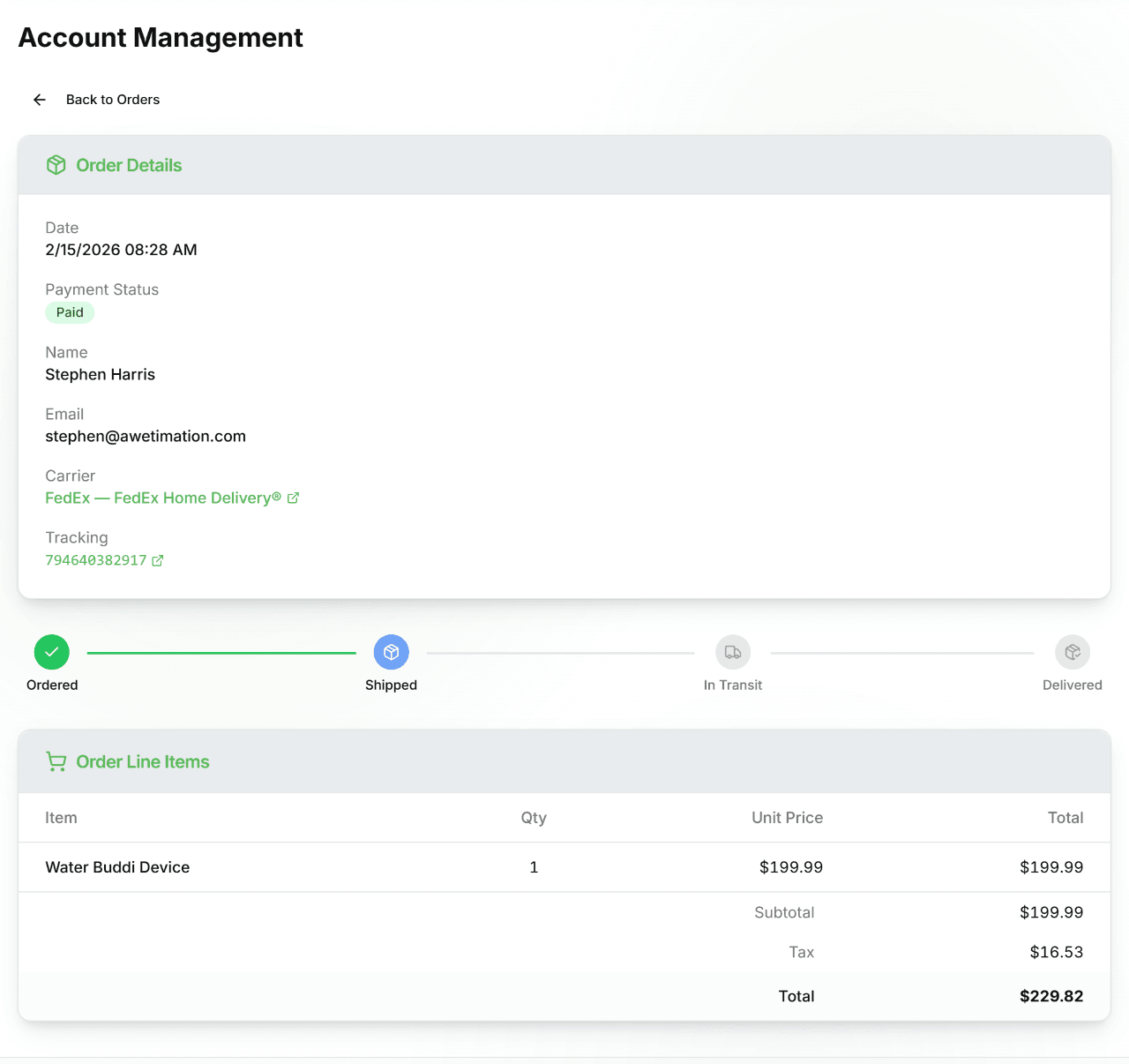
Tap any row on the Orders list to open the full order detail page.
- Order summary — date and time, payment status, customer name, email, carrier, and a clickable tracking number.
- Shipment progress bar — shows the current stage: Ordered → Shipped → In Transit → Delivered.
- Order Line Items — itemised list of products with quantity, unit price, subtotal, tax, and order total.
Shipments
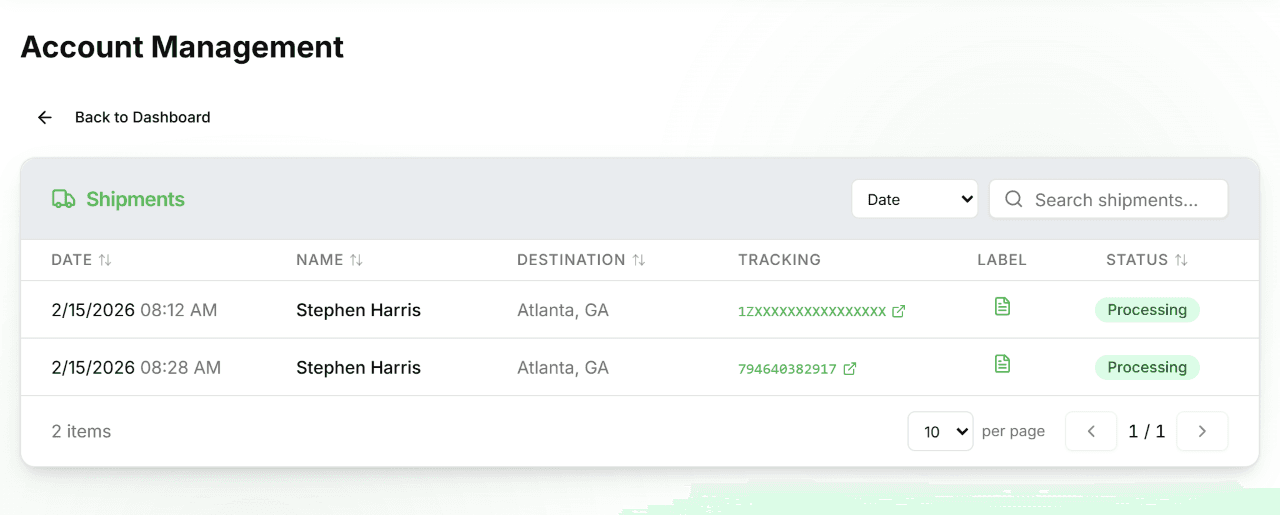
View all shipments linked to your account at /account/shipments, or jump there from the Quick Links card on the dashboard.
- Each row shows the ship date, recipient name, destination city, tracking number, shipping label PDF icon, and status badge.
- Tracking number — click to open the carrier's tracking page directly.
- Label — click the document icon to download the shipping label PDF.
- Sort — click any column header (Date, Name, Destination, Status) to sort ascending or descending.
- Search — filter shipments by name, tracking number, or destination.
Shipment Details
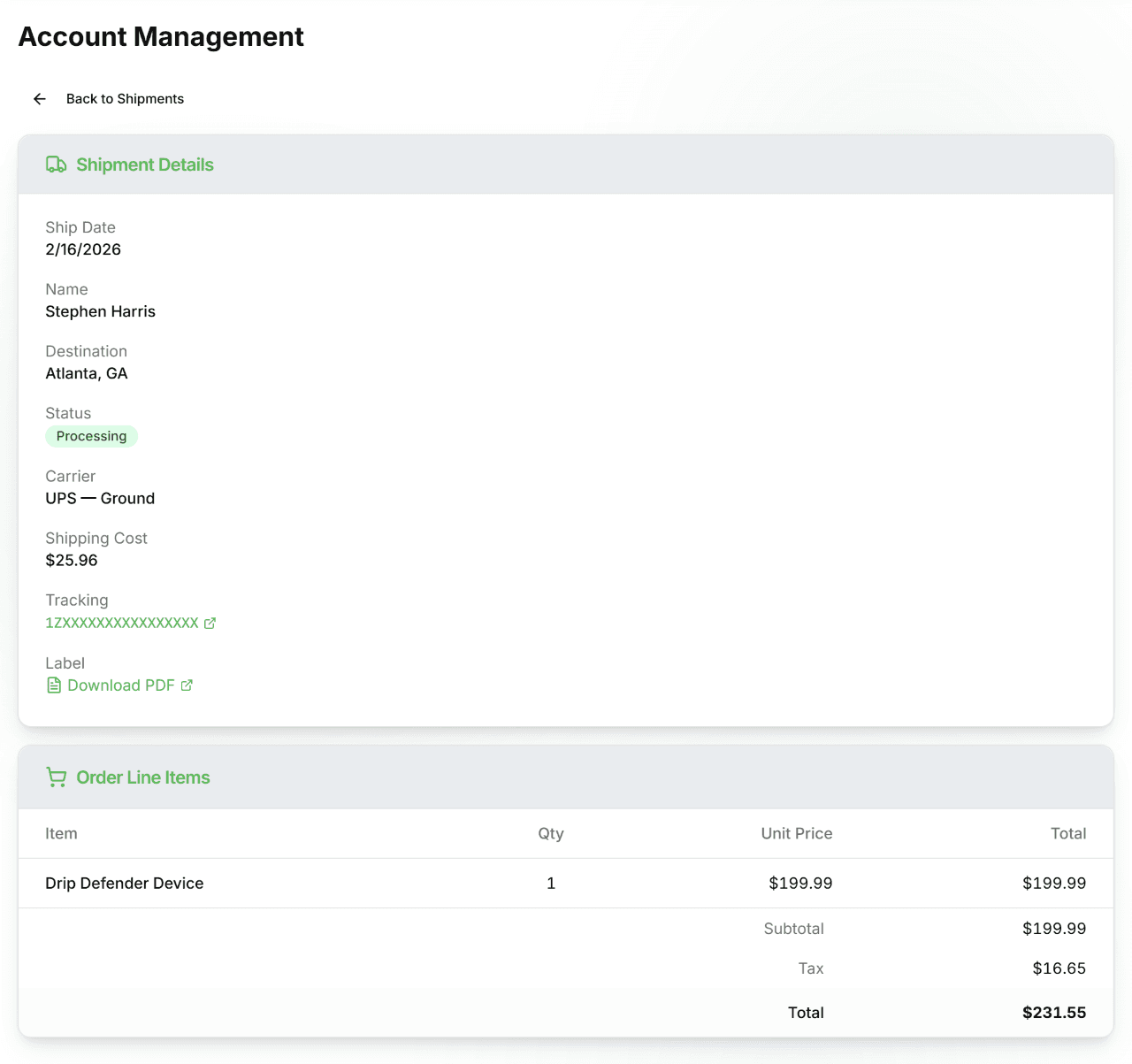
Tap any row on the Shipments list to open the full shipment detail page.
- Shipment summary — ship date, recipient name, destination, status badge, carrier and service level, shipping cost, tracking number, and a link to download the label PDF.
- Order Line Items — itemised list of the products in this shipment with quantity, unit price, subtotal, tax, and total.
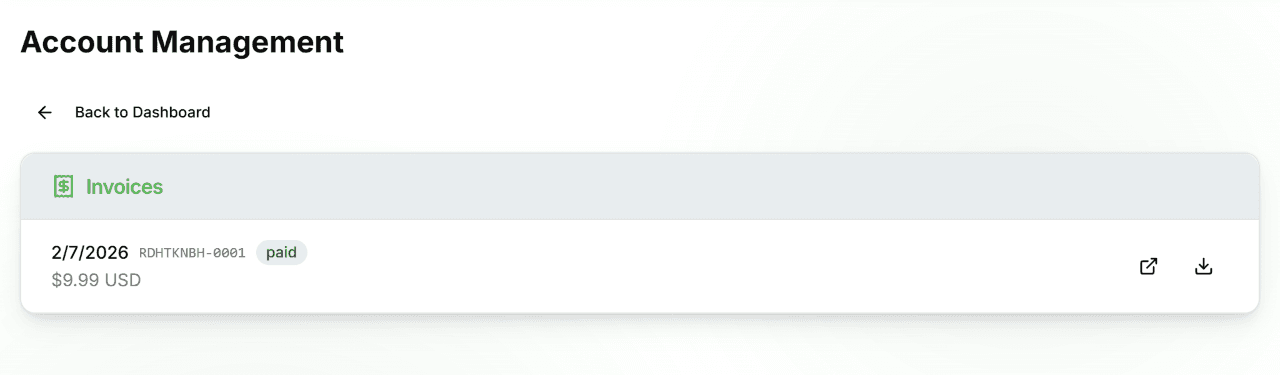
Invoices
View and download all your subscription invoices at /account/invoices, or jump there from the Quick Links card on the dashboard.
- Each invoice row shows the date, invoice number, paid status badge, and amount.
- Open — click the external link icon to view the invoice in your browser.
- Download — click the download icon to save the invoice as a PDF to your device.
User Profile
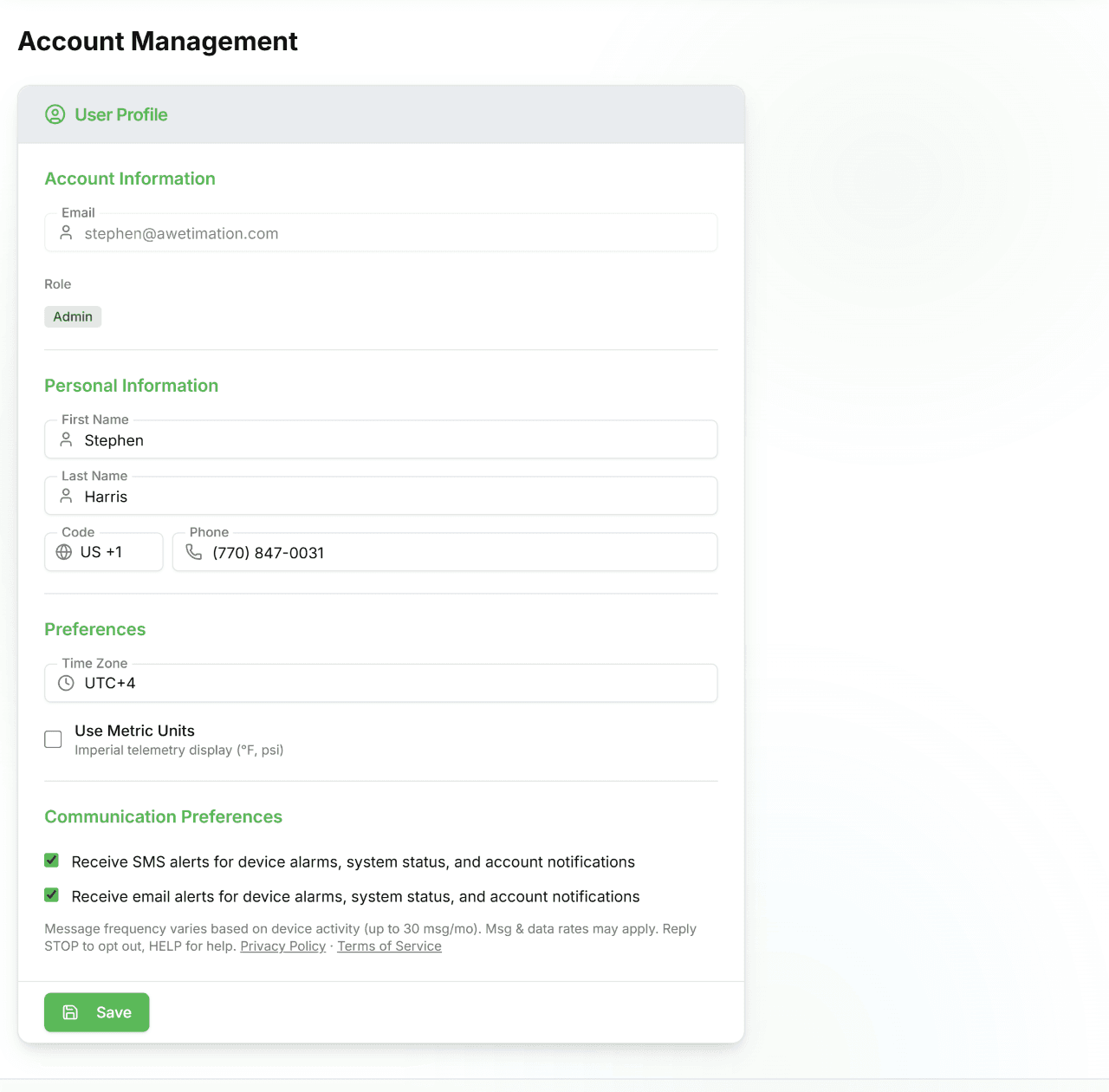
Update your personal account details at /account/profile.
- Account Information — your sign-in email (read-only) and role badge (Admin, User, etc.).
- Personal Information — first name, last name, and phone number.
- Time Zone — set your UTC offset so all timestamps display in your local time.
- Units — toggle between imperial (°F, psi) and metric (°C, kPa) for all sensor readings.
- Communication Preferences — opt in or out of SMS and email alerts at the user level.
Tap Save to apply changes.
Support Tickets
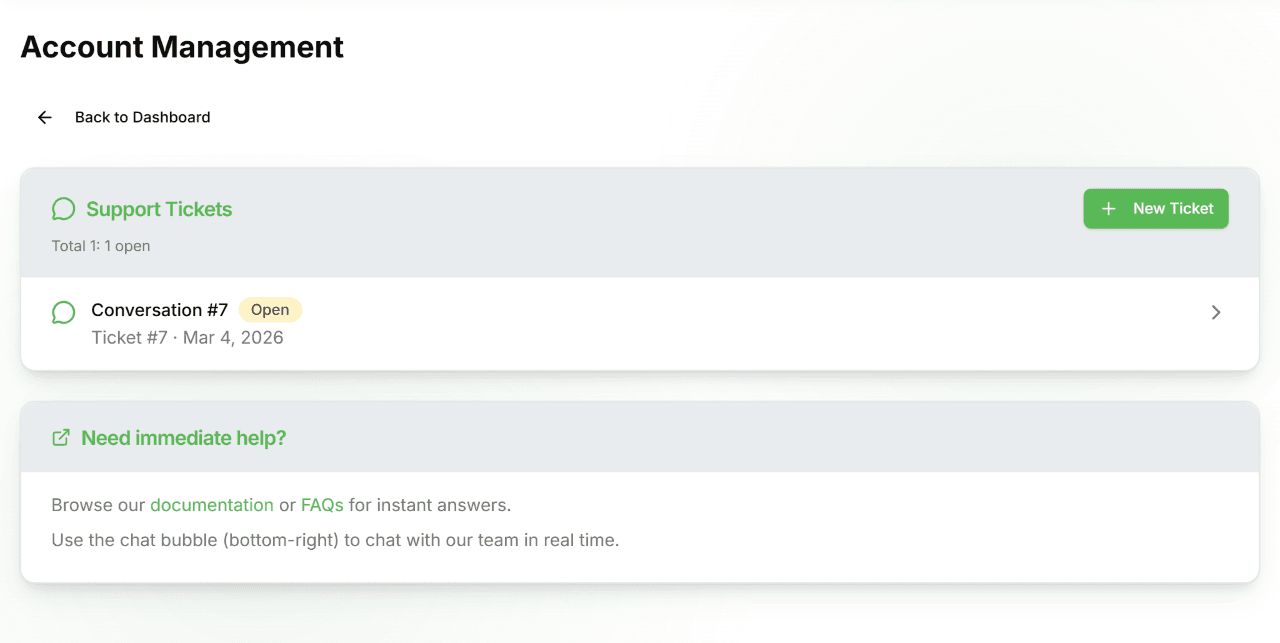
View and manage your support conversations at /account/support.
- All your support tickets are listed with subject, status badge (Open, Pending, Resolved, Snoozed), ticket number, and last activity date.
- New Ticket — click the button in the top-right to open the live chat widget and start a new conversation.
- View ticket — tap any row to read the full conversation thread.
- For immediate help, browse documentation or FAQs, or use the chat bubble in the bottom-right corner.
Need help with your account?
Our support team is here to help. Submit a request and we'll get back to you within one business day.