
Device App Guide
Everything you need to know about using the Telemetry Insights app — from logging in and monitoring your devices to managing your subscription and notification preferences.
Getting Started
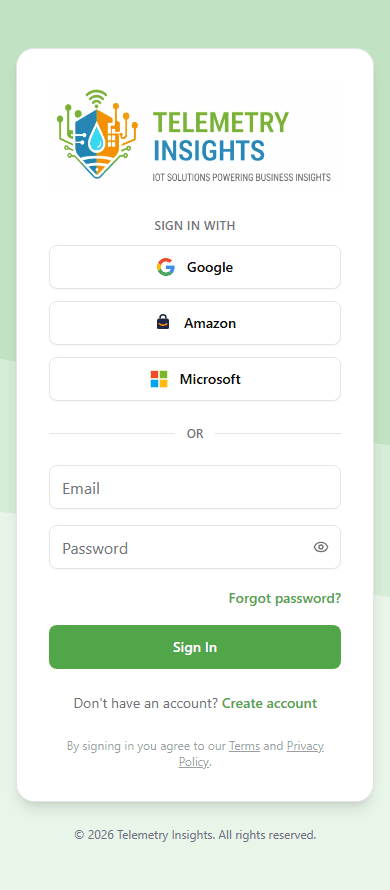
The Telemetry Insights app runs in your browser as a Progressive Web App (PWA). No App Store download is required — just open the URL and sign in. For the best experience, install it to your home screen so it opens like a native app.
Dashboard
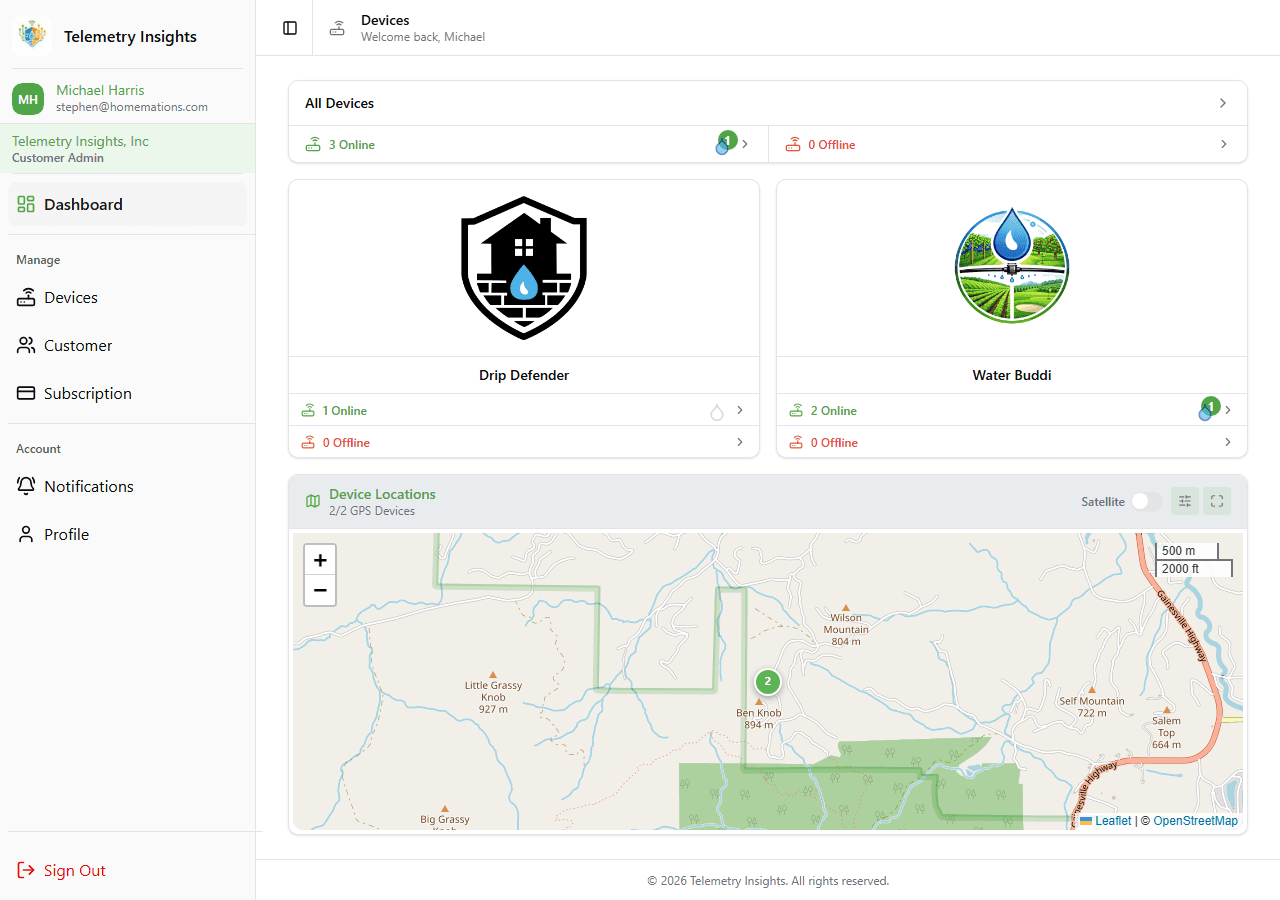
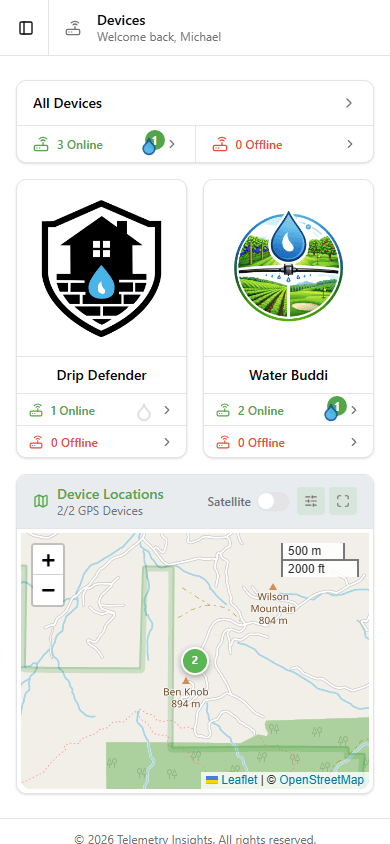
The dashboard is your home screen. It shows a summary of all your devices grouped by type, active and inactive counts, and an interactive map of device locations.
- Each device profile card shows online/offline counts and total devices.
- Tap a profile card to jump directly to the filtered device list.
- The map widget shows all devices with GPS coordinates. Tap a pin for a quick summary, or use the Expand button for the full map.
Your Devices
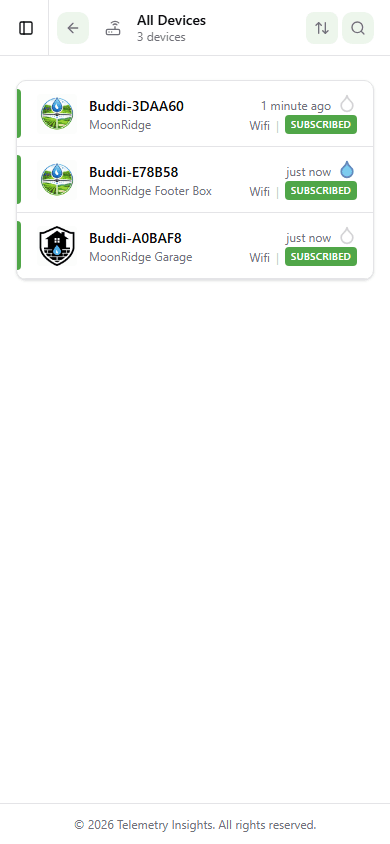
The Devices page lists all devices assigned to your account. Use search, sort, and filter to quickly find what you need.
- Search — tap the search icon in the top bar and type a device name or label.
- Sort — tap the sort icon to order by name, label, or last activity.
- Status indicator — a green bar means the device is online; red means offline.
- Subscription badge — shows whether monitoring is active for each device.
- Tap any device row to open its detail page.
Device Detail
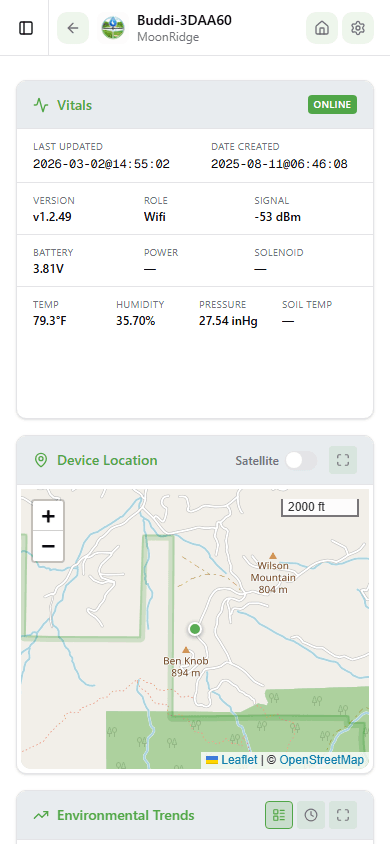
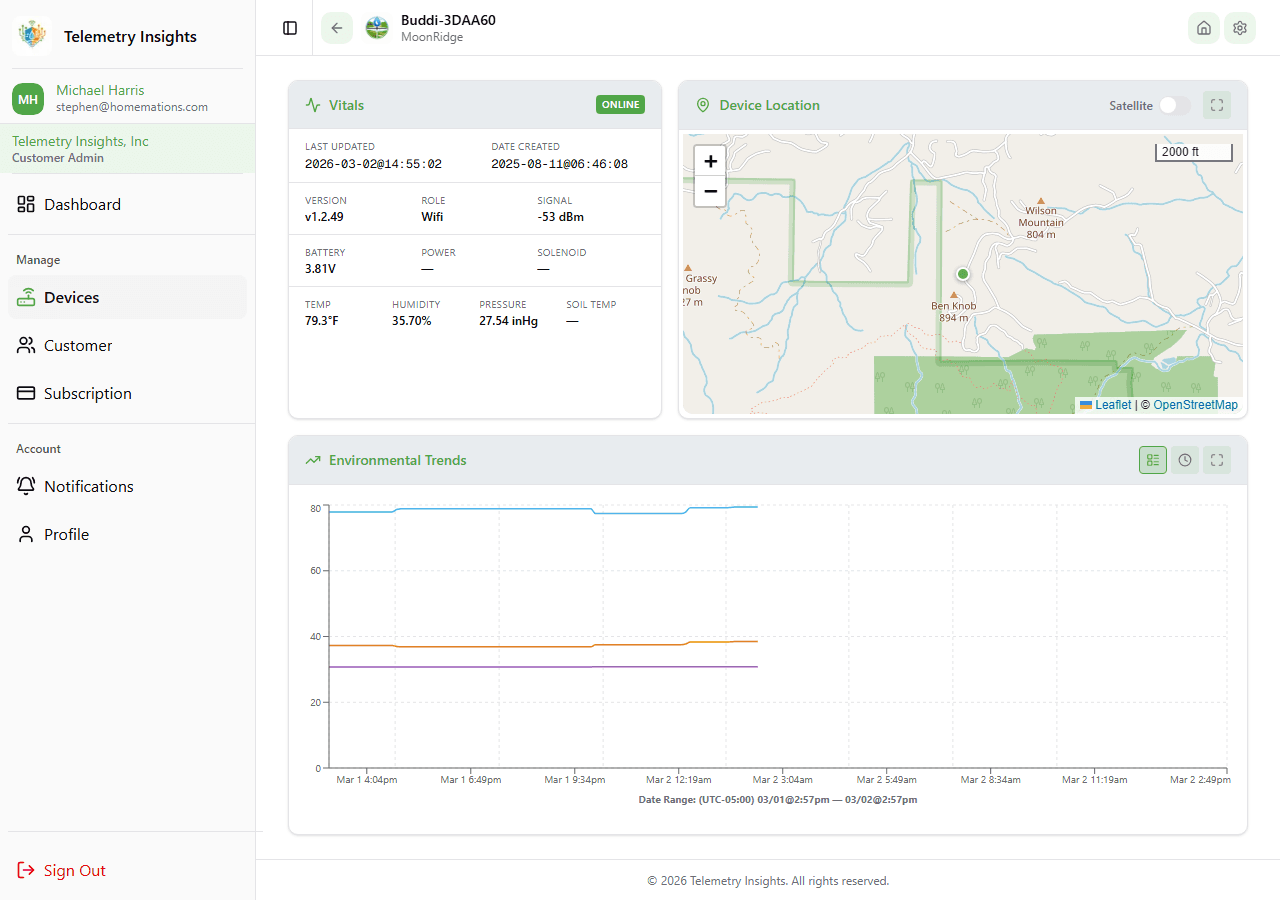
The device detail page shows real-time telemetry, location, and historical trends for a single device.
- Vitals widget — live readings for battery, temperature, humidity, soil moisture, and pressure. Values update automatically via WebSocket.
- Location map — shows the device's GPS position. Tap the expand icon for a full-screen map.
- Trends chart — historical telemetry graph. Use the series toggles to show/hide individual readings, and the time-range buttons to zoom in or out.
Device Settings
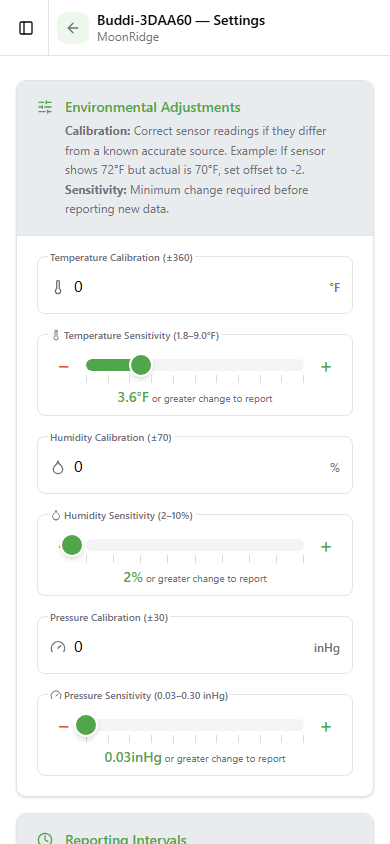
Device settings let you fine-tune sensor calibration and reporting intervals for each device.
- Calibration offsets — adjust temperature, humidity, pressure, and soil moisture readings to correct for sensor variance.
- Sensor interval — how frequently the device takes a reading.
- Telemetry interval — how frequently the device transmits data to the server.
- Tap Save to apply changes. Settings are sent to the device on its next check-in.
Home Assistant Integration
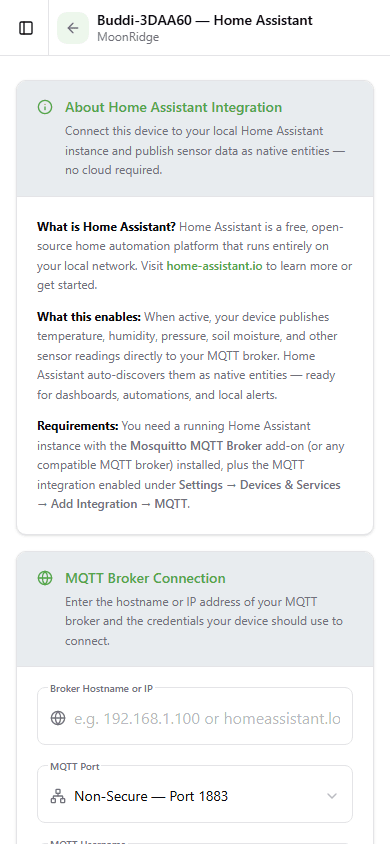
AdvancedEach device can bridge its telemetry to a Home Assistant instance via MQTT. This lets you use Telemetry Insights sensor data inside your home automation workflows.
Devices Map
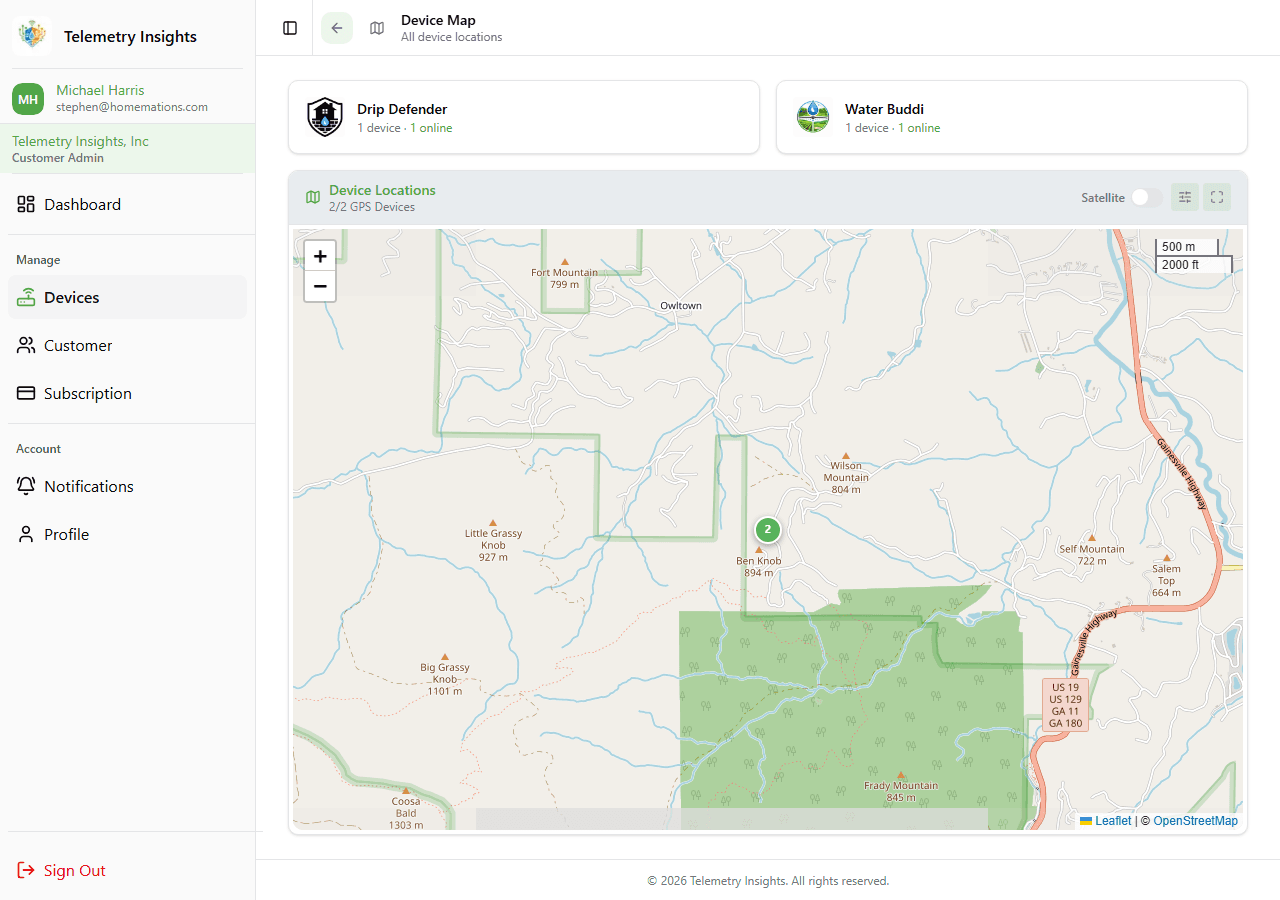
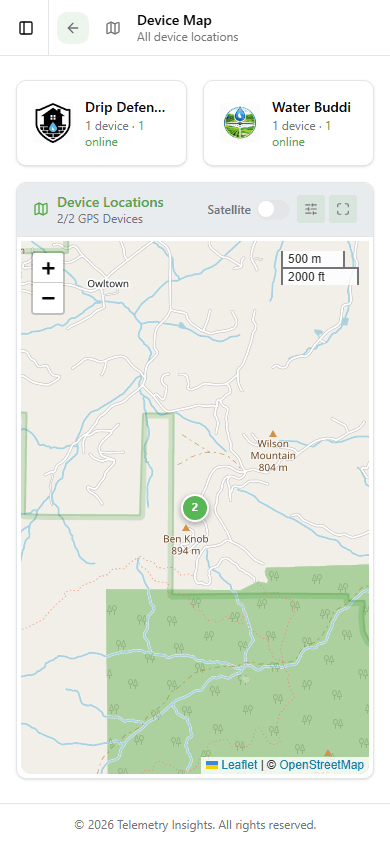
The full-screen map shows all your devices at once, with filters and clustering for large deployments.
- Filter panel — filter visible devices by device type and online/offline status.
- Satellite view — toggle between standard map and satellite imagery.
- Cluster pins — when multiple devices are close together they are grouped into a cluster. Tap a cluster to see all devices in that area.
- Tap a single pin to see a quick-view popup with live telemetry, then tap View Device Details to open the full detail page.
Subscription
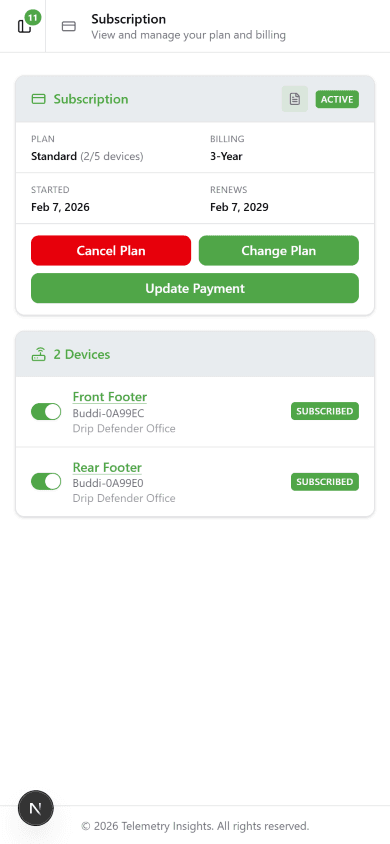
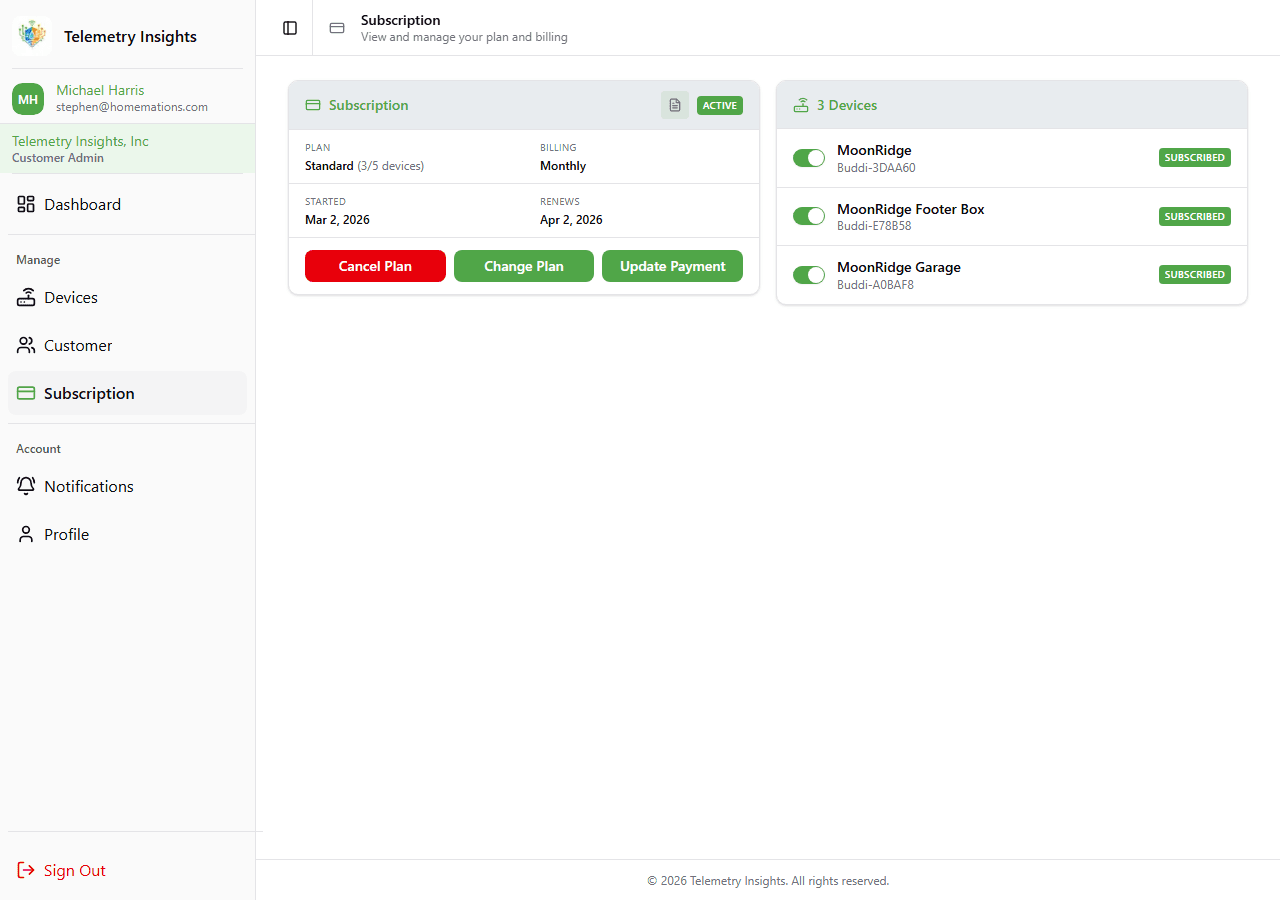
The Subscription page shows your current plan, billing details, and which devices are included in your monitoring.
- Plan card — displays your current tier, billing interval, start and renewal dates, and how many devices are active.
- Change Plan — opens the plan selector where you can upgrade, downgrade, or switch billing intervals (monthly, yearly, 3-year).
- Devices — toggle which devices consume a subscription slot. Tap Save to apply changes.
- Billing — view past invoices and update your payment method.
- Cancel Subscription — cancels at the end of the current billing period. Your devices remain active until then.
Notifications
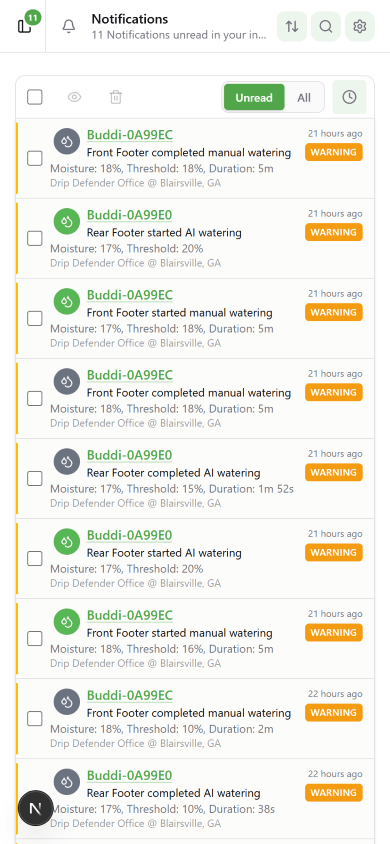
The Notifications page shows all recent alerts from your devices, including alarm events and system messages.
- Unread notifications are highlighted. The badge count in the sidebar updates in real time.
- Mark as read — swipe right on a notification or tap the eye icon.
- Delete — swipe left or tap the trash icon to remove a notification.
- Use the search and sort icons in the top bar to filter by keyword or reorder by date or severity.
- Tap a notification to see the full alarm details.
Notification Settings
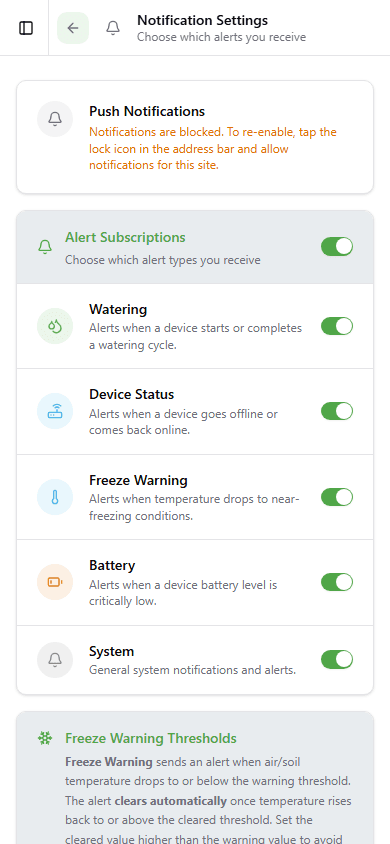
Control which alarm types trigger push notifications and configure alert thresholds.
- Toggle each alarm type on or off — Battery Low, Freeze Warning, Device Offline, Watering Alert, and more.
- Battery threshold — set the voltage level that triggers a low-battery notification.
- Freeze temperature — set the temperature below which a freeze warning fires.
- Changes are saved automatically when you toggle or adjust a threshold.
Customer Details
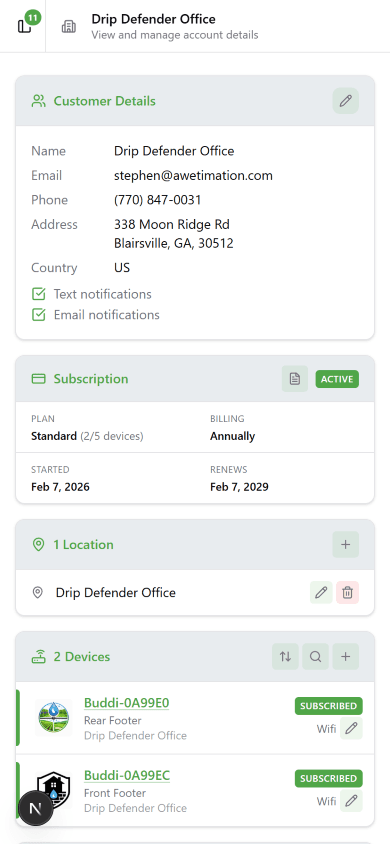
Account Settings is where you manage your account-level information — the name that identifies your account, your billing and contact address, notification opt-ins, and your named property locations.
- Account Name — the name you chose for your account (e.g. “Smith Residence”, “Acme Farms”). This is your account identifier, not a physical location.
- Address — billing and contact address. Used as the default for payments; can be changed for individual transactions.
- Phone — contact phone number for the account.
- Notification preferences — opt in or out of SMS and email alerts at the account level.
- Locations — named labels for the areas where your devices are installed. See the Locations section below.
Locations
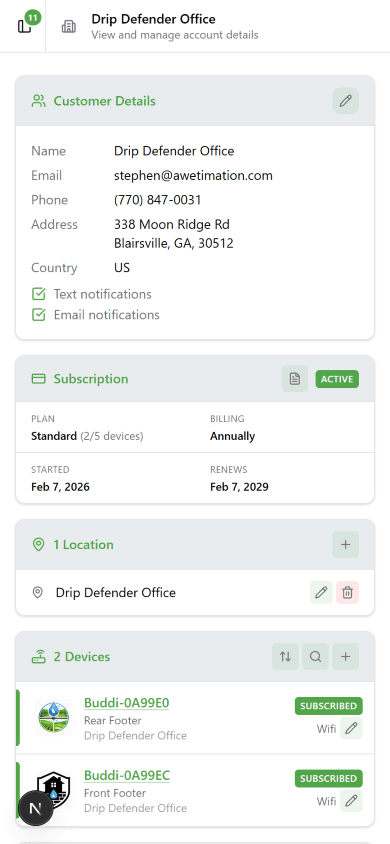
Locations are short labels for the physical areas where your devices are installed — for example “Front Yard”, “Back Pasture”, or “Zone A — East Field”. They help you organize devices by area within your single account.
- Manage locations from your account details page → the Locations card.
- Admin users can add, rename, and delete locations. Standard users can view but not edit.
- When you add your first location, the app pre-fills your account name as a starting point — accept it or type something more specific.
- Location names are limited to 32 characters.
- Each device can be assigned to a location from its settings page. If a location is deleted, affected devices will need to be reassigned.
Profile & Settings
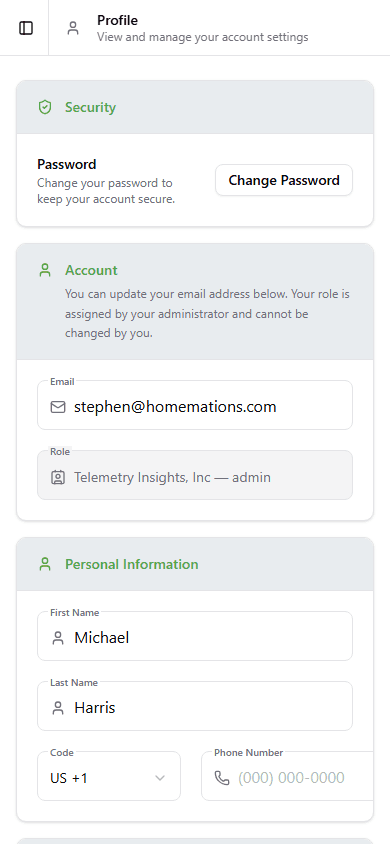
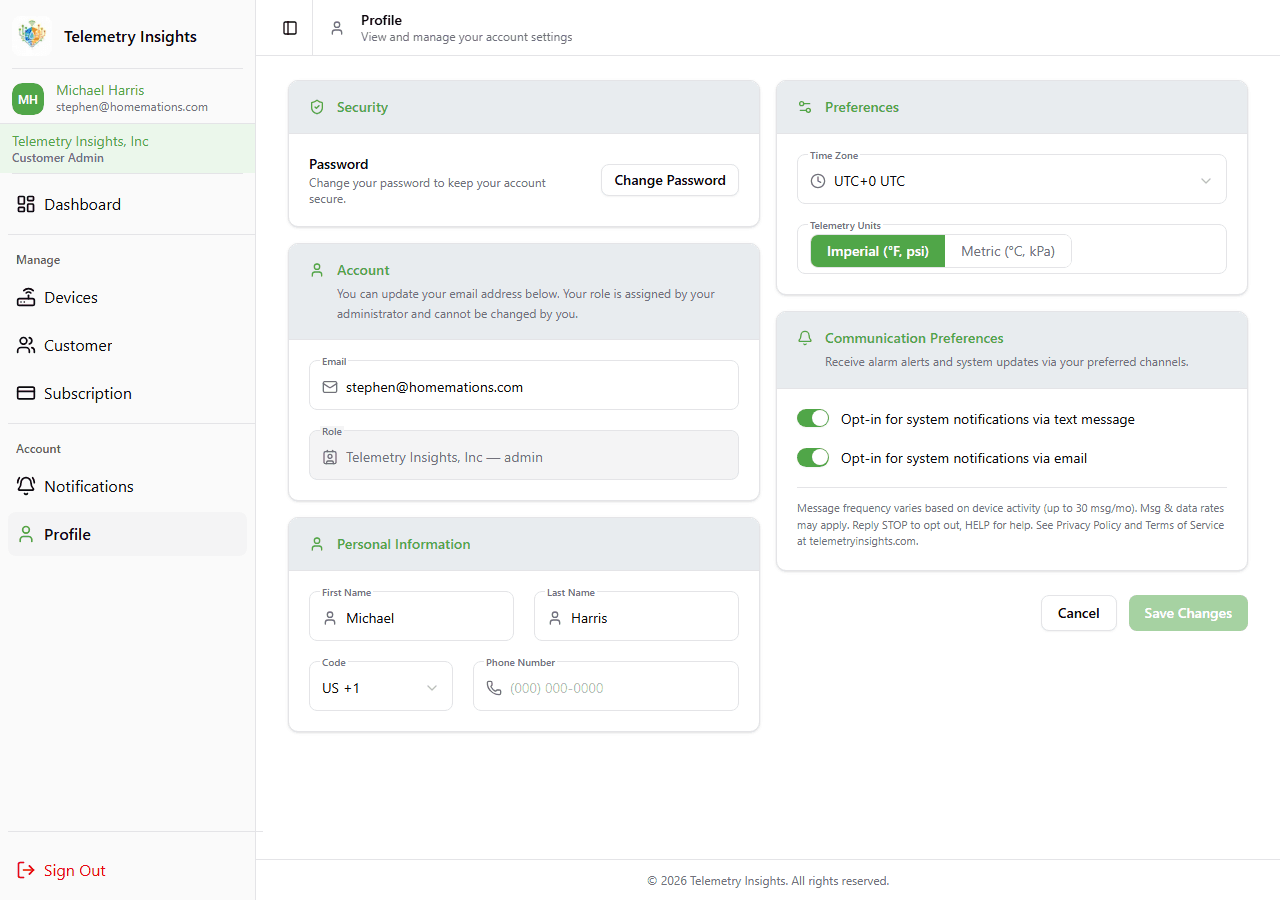
Update your personal details, display preferences, and account settings from the Profile page.
- Name & phone — update your first name, last name, and phone number.
- UTC offset — set your local timezone so timestamps display correctly.
- Units — choose between metric (°C, mm) and imperial (°F, in) for all sensor readings.
- Email & SMS alerts — enable or disable email and text message notifications in addition to push notifications.
Need more help?
Can't find what you need? Submit a support request and we'll get back to you.
Submit a Support Request