
Buying Guide — Shop & Checkout
Everything you need to know to purchase Telemetry Insights hardware and a subscription plan — from browsing products to completing payment and tracking your shipment.
Browse the Shop
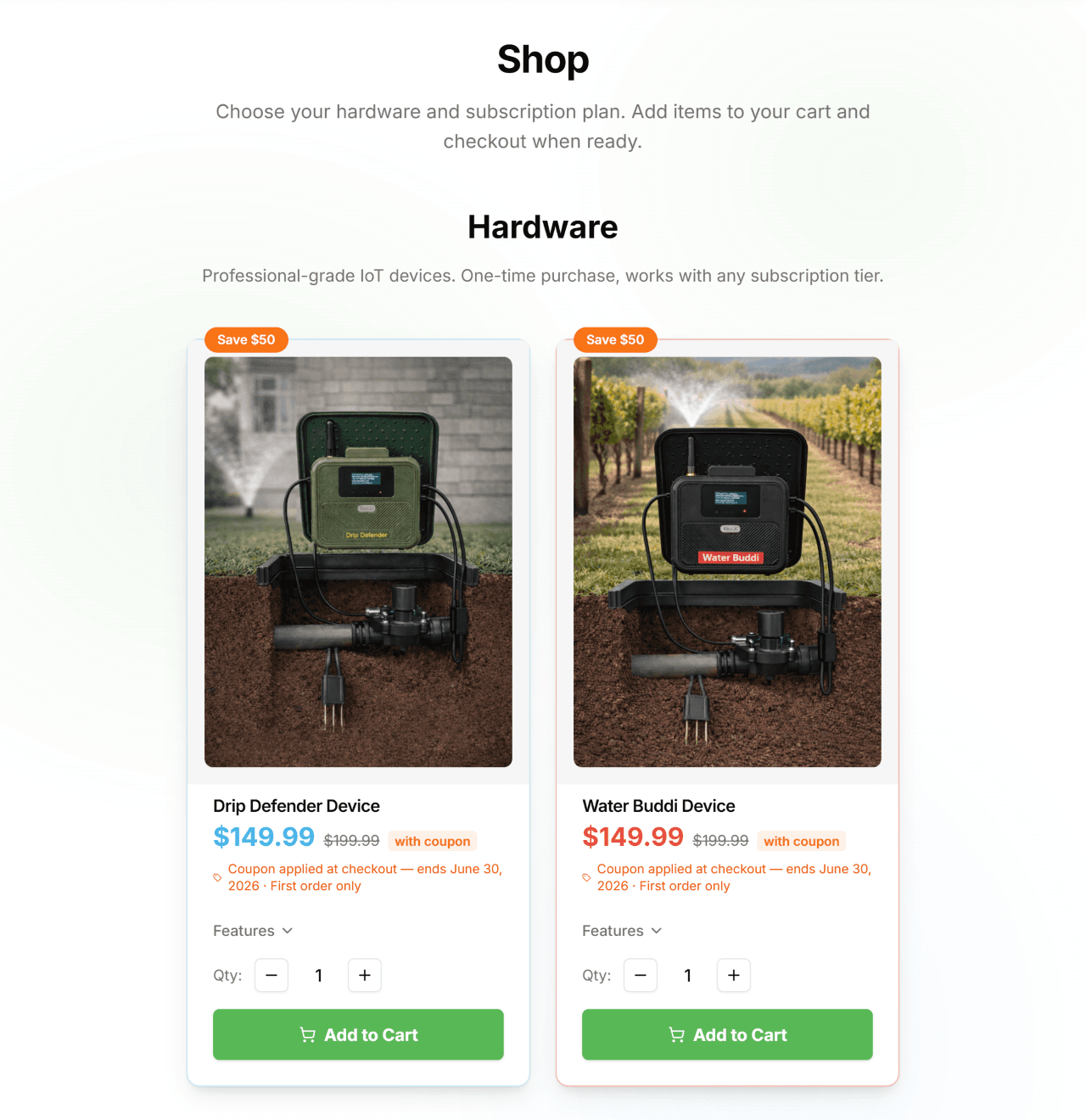
Visit telemetryinsights.com/shop to browse hardware and subscription plans. The shop is split into two sections:
Hardware
- One-time purchase devices (Water Buddi, Drip Defender).
- Use the Qty selector to choose how many units to add.
- Tap Add to Cart — a dot animates to the cart icon confirming it was added.
- Low stock and out-of-stock badges appear automatically when inventory is limited.
- Applied coupons display the discounted price and expiry date on the card.
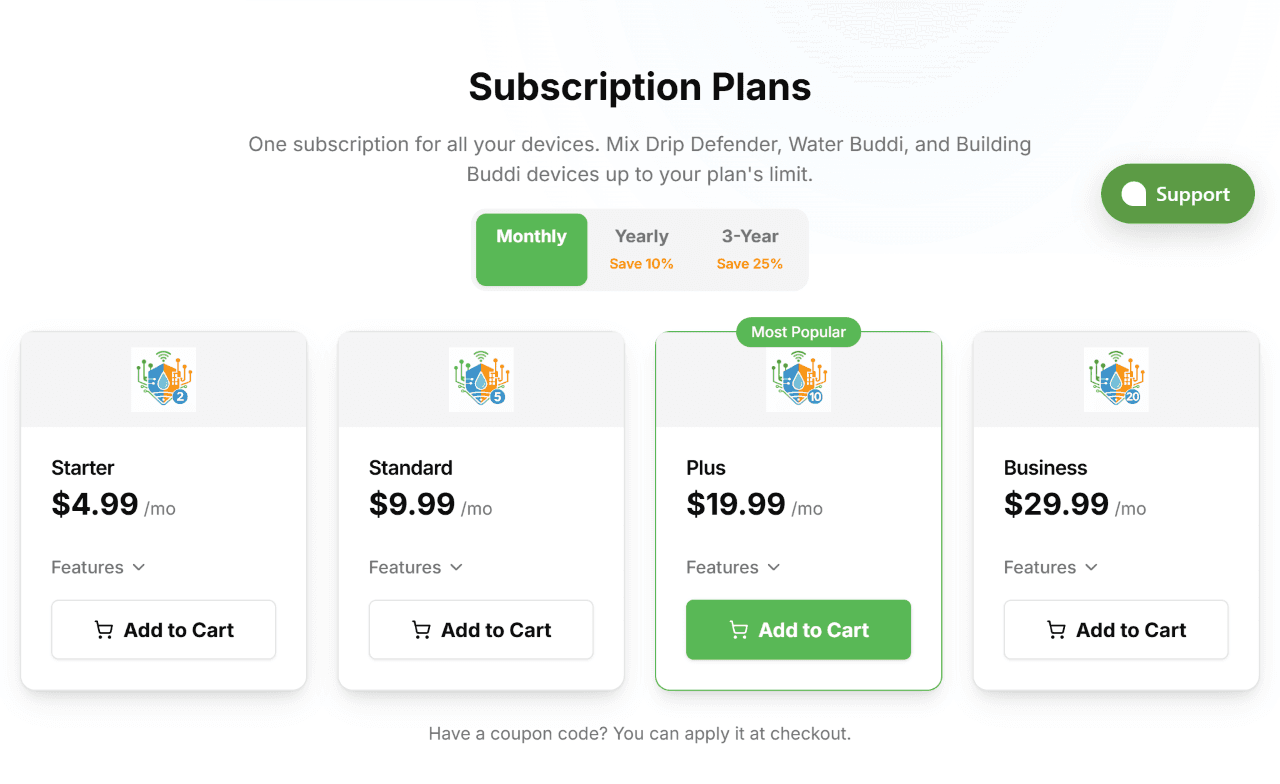
Subscription Plans
- Four tiers: Starter (2 devices), Standard (5), Plus (10), Business (20).
- Use the billing toggle to switch between Monthly, Yearly (Save 10%), and 3-Year (Save 25%).
- One subscription covers all device types — mix Water Buddi and Drip Defender freely.
- Tap Add to Cart on your chosen plan.
Shopping Cart
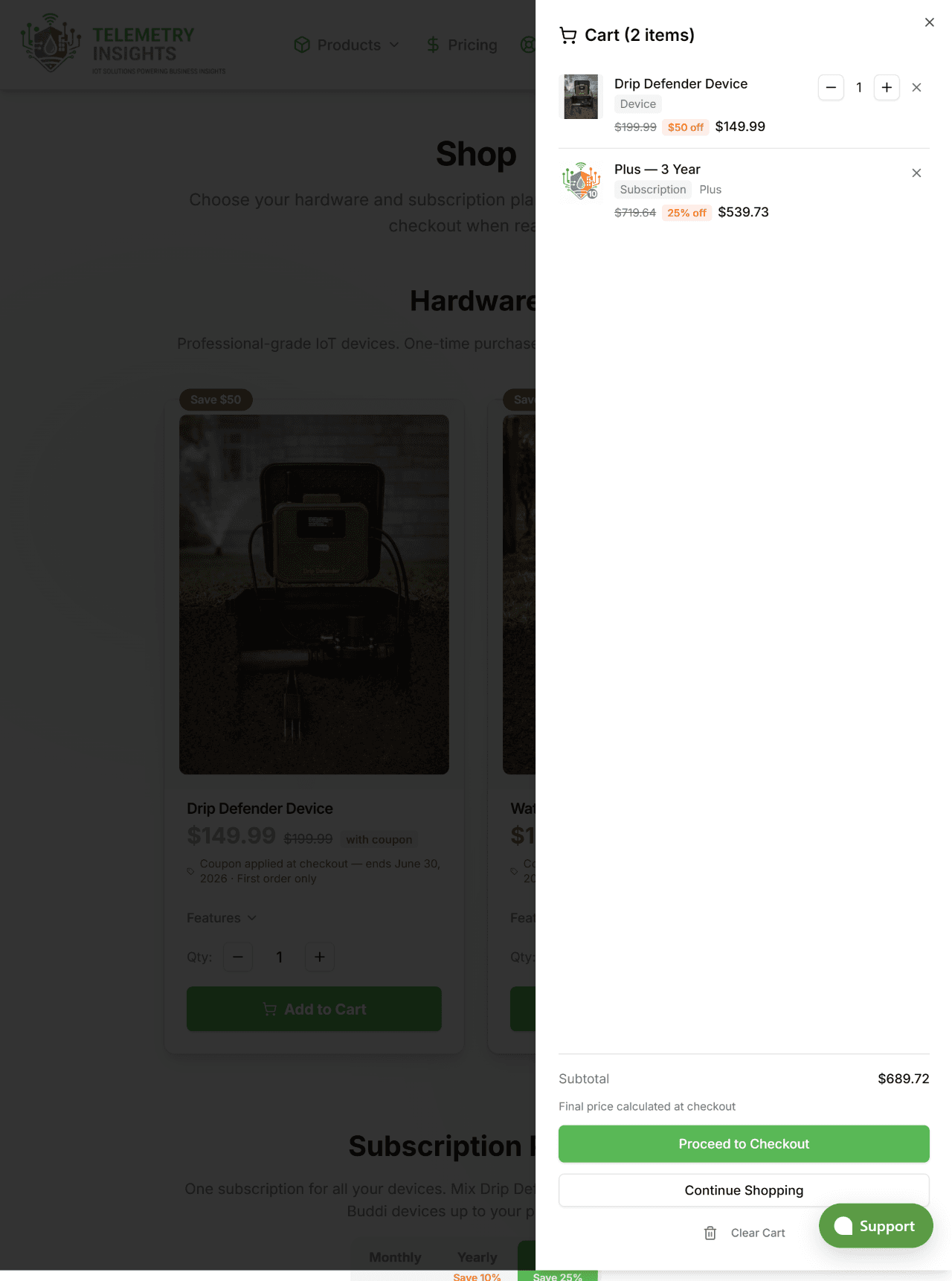
The cart icon in the header shows a badge with the number of items in your cart. Click it to open the cart sidebar.
- Each item shows product name, billing interval (for subscriptions), price, and quantity.
- Remove items individually or clear the entire cart.
- You can mix hardware and a subscription in one cart — they will be charged in a single checkout session.
- Tap Checkout when ready to proceed.
You must be signed in to complete checkout. If you are not signed in, you will be prompted to sign in before continuing. Your cart is saved.
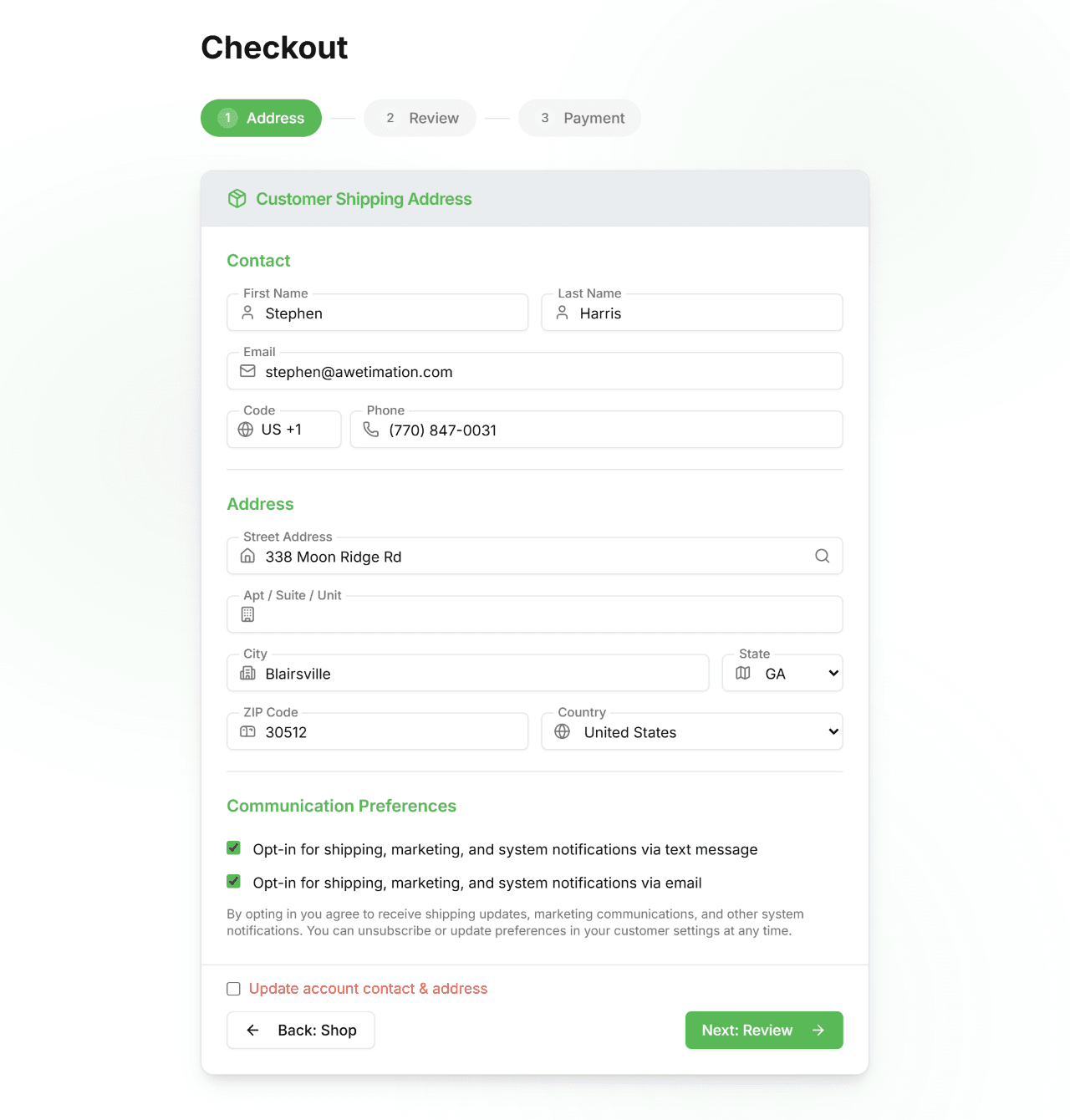
Step 1 — Shipping Address
CheckoutThe first checkout step collects your shipping address. Your account address pre-fills automatically if one is on file.
Step 2 — Review & Shipping
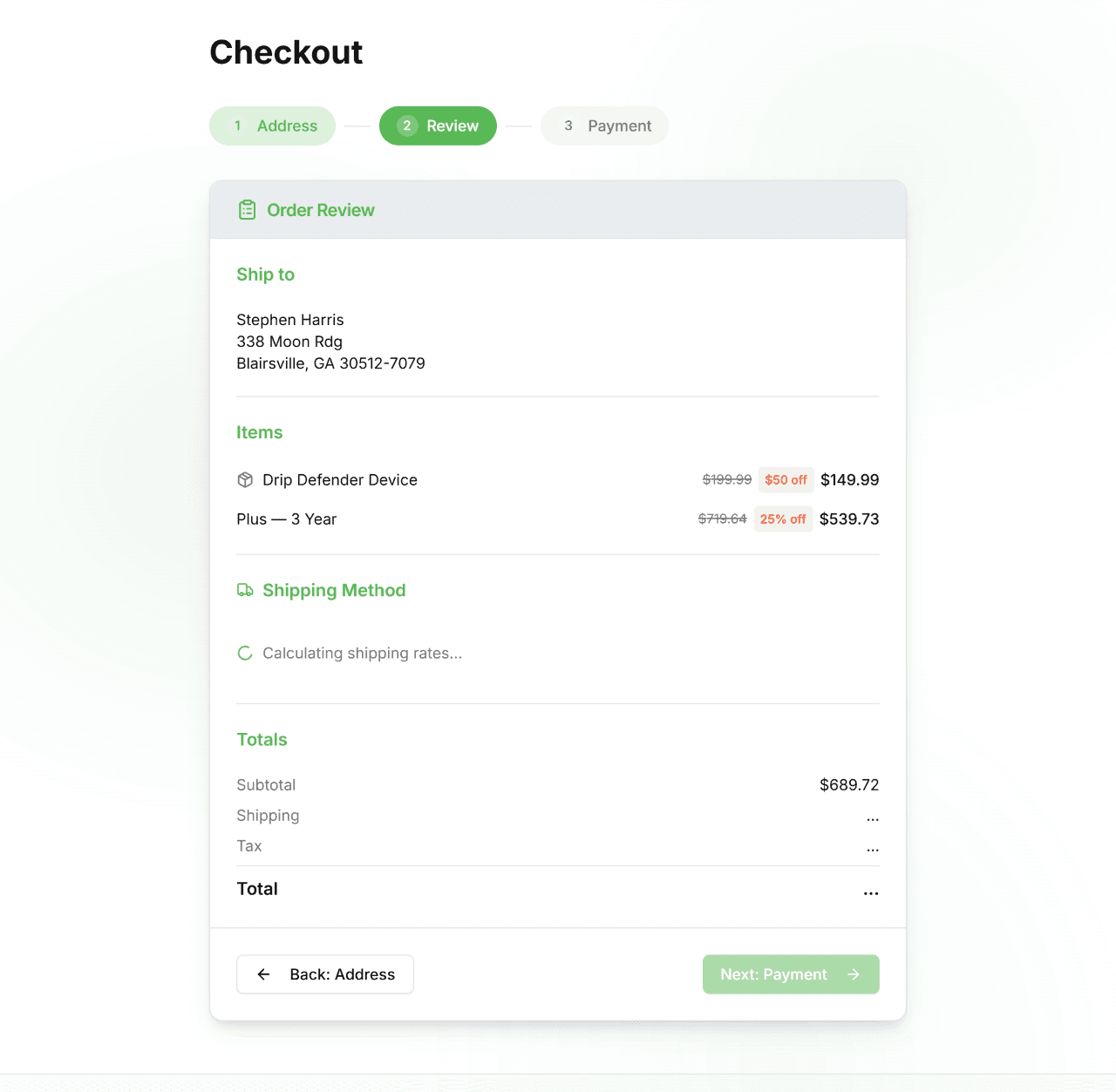
CheckoutReview your order and choose a shipping speed before payment.
- Order Summary — lists every item in your cart with quantities and prices.
- Shipping Rates — real-time rates are fetched from ShipEngine. Filter by delivery speed (1 day, 2–3 days, 3+ days) or view all options.
- Select a shipping rate — the estimated delivery window and price appear on each option.
- Tax — calculated automatically based on your shipping address.
- Tap Continue to Payment when ready. Tap Back to edit your address.
Step 3 — Payment
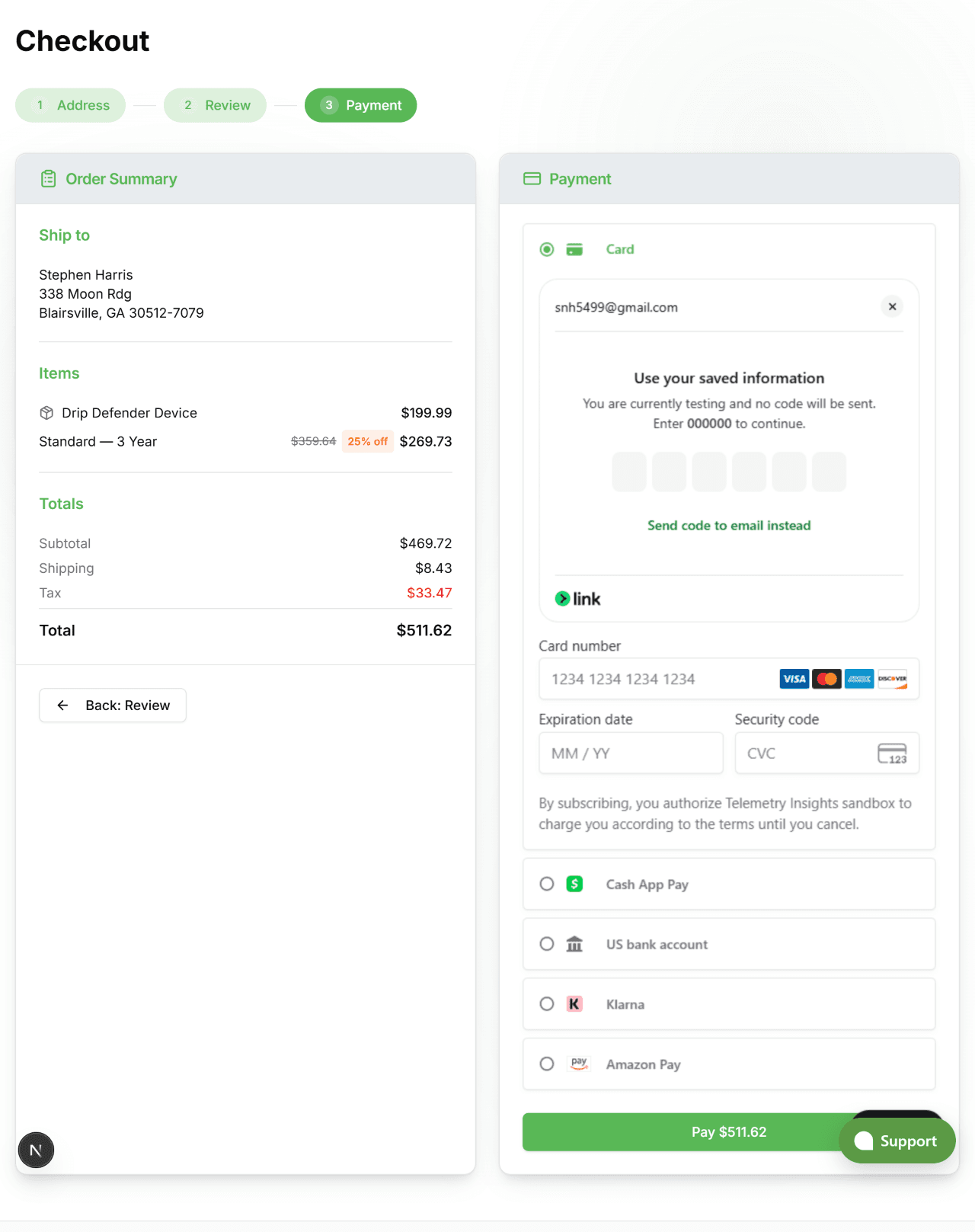
CheckoutPayment is handled securely by Stripe. Your card details are never stored on Telemetry Insights servers.
- The order summary on the right shows your items, selected shipping rate, tax, and total.
- Enter your card number, expiry, and CVC. Apple Pay and Google Pay appear automatically if your browser supports them.
- If you have a coupon code, enter it in the coupon field — the discount is applied instantly before payment.
- Tap Pay to complete your purchase. Stripe handles all 3DS/authentication prompts.
Order Confirmation
After successful payment you are redirected to the confirmation page.
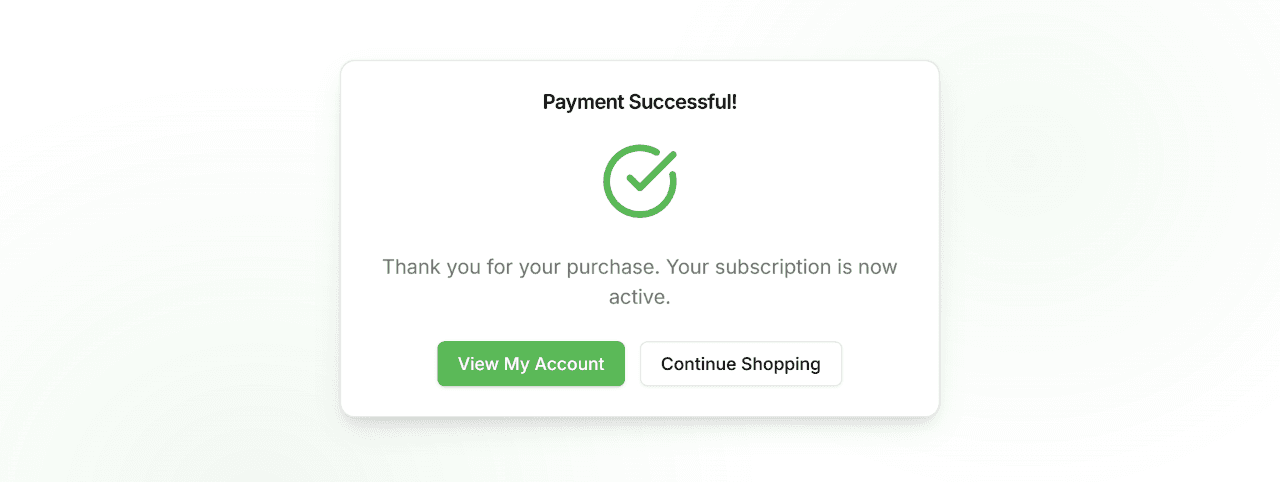
- A Payment Successful confirmation appears.
- If you purchased a subscription, it is activated immediately — go to Account → Devices to enable your devices for monitoring.
- If you purchased hardware, your tracking number and carrier are shown. Tracking updates may take a few hours to appear after label creation.
- Tap View My Account to go to your account dashboard, or Continue Shoppingto return to the shop.
A confirmation email is sent to the address you entered at checkout. Your order history is also available at /account/orders.
Ready to get started?
Browse our products and subscription plans. Questions? Our team is here to help.